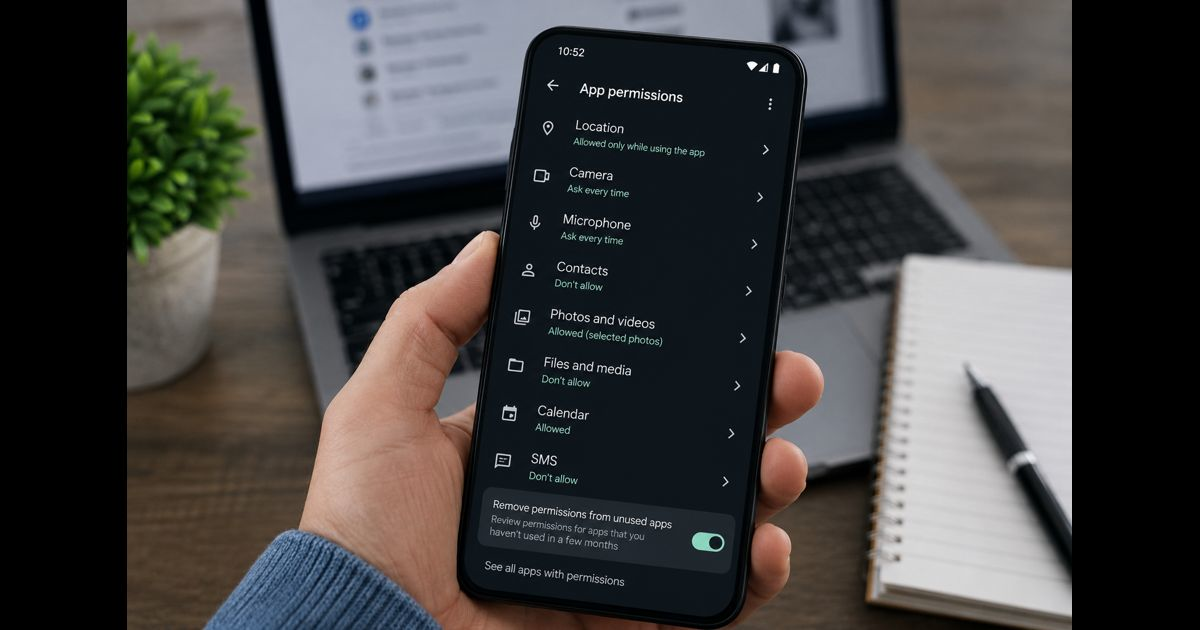
An app permissions audit is a deliberate review of what each app, browser extension, and connected service can access—and whether that access is still necessary. The goal is not to block every permission. It is to give each tool only the access required for its useful function, for only as long as it is needed.
A navigation app needs location while guiding a journey. A video-calling app may need a camera and microphone during a call. Those uses are understandable. A simple flashlight, calculator, or wallpaper app requesting contacts, microphone access, or full device storage deserves closer scrutiny.
The safest default is simple: allow the narrowest access that lets an app do its main job. Revisit that decision when the app changes, your needs change, or you no longer use it.
The app permissions audit checklist
Work through these checks one app or permission category at a time.
- List the apps, extensions, and connected accounts you actively use.
- Remove apps you no longer recognize, need, or trust.
- Review high-impact permissions first: location, camera, microphone, contacts, photos, files, calendar, SMS, accessibility, and device-administration access.
- Ask what specific feature requires the access.
- Choose the least broad option available: one-time, while using the app, selected photos, approximate location, or no access.
- Check which apps accessed sensitive permissions recently.
- Review browser extensions separately; their access can include the pages you visit and the data entered into websites.
- Review apps connected to Google, Apple, Microsoft, social, banking, work, or other online accounts.
- Revoke access that is unused, excessive, or unclear.
- Test the app’s essential feature after each important change.
- Record exceptions for work, accessibility, health, or safety tools.
- Repeat the audit every three to six months and after installing a new app or major update.
Start with an inventory, not a permission pop-up
Permission requests often appear when someone is trying to complete a task quickly. That is the worst moment to make a lasting privacy decision. Begin with a calm inventory instead.
Group installed apps into four categories:
|
Category |
Typical action |
|
Essential and frequently used |
Review permissions closely and keep only justified access |
|
Occasionally used |
Restrict access until the app is needed |
|
Unused or forgotten |
Uninstall |
|
Unrecognized or obtained from an unclear source |
Investigate, then remove if trust cannot be established |
An installed app can remain on a phone long after its purpose has disappeared. Removing it is often safer and simpler than trying to manage every permission it retains.
Before installing a new tool, apply the same evidence standards used in careful product reviews: identify the job it must do, assess the source, and consider what ongoing access or account dependence it creates.
Review the permissions with the greatest consequences
Not every permission carries the same privacy or security impact. Focus first on access that can reveal sensitive information, affect other people, or alter device behavior.
Location
Location can reveal home, workplace, routines, medical visits, places of worship, and travel patterns. Use “while using the app” when that meets the app’s purpose. Prefer approximate location when precise coordinates are unnecessary.
Background or all-the-time location may be reasonable for a personal-safety service, a family location tool used with informed consent, or an activity tracker. It is harder to justify for apps that do not need to act when closed.
Camera and microphone
A messaging, scanning, video-call, or photo-editing app may reasonably need these capabilities during active use. A shopping, weather, note, or utility app usually should not need continuing access.
If an app asks for the camera or microphone before its relevant feature is used, deny the request initially. Grant access later only if the feature genuinely requires it.
Contacts, calendar, and call information
These permissions can expose details about people who have not installed the app or agreed to its data practices. Allow them only when the app’s core benefit clearly depends on them, such as a trusted communication tool or a calendar application.
A service that merely offers “friend discovery” may work without contact access. Convenience alone is not always enough reason to share an entire address book.
Photos, videos, files, and storage
A photo editor needs selected images. It does not necessarily need access to every image on the device. When the operating system offers a selected-items option, use it unless broader access is essential.
Treat full file access with particular care. It can expose documents, downloads, backups, and information created by other apps.
SMS, accessibility, device administration, and notifications
These permissions deserve heightened attention because they may enable an app to read or act on messages, observe screen content, control device functions, or continuously interrupt you.
Accessibility access is important for many people and can support legitimate tools such as screen readers, voice control, password managers, and automation. It can also be misused. Grant it only to established apps from a trusted publisher, and remove it when it is no longer needed.
Notifications are less sensitive than device administration, but they affect attention and can expose private content on a lock screen. Keep alerts for timely, useful information—not every promotion or social update. This supports the same deliberate boundaries discussed in digital well-being.
Use a necessity test before allowing access
For each permission, answer four questions:
- What exact feature needs this access?
- Does that feature matter enough to use the app?
- Is there a narrower setting that still works?
- Would I be comfortable if this access were used at an unexpected moment?
A permission is more defensible when its purpose is specific and visible. For example, a document scanner may need camera access when scanning; a local transit app may need approximate location while providing nearby departures.
Be more cautious when the explanation is vague, the access is unrelated to the app’s main function, or the app requests several sensitive permissions at once before providing any useful service.
Denying a permission does not automatically mean an app is dangerous. It may simply mean a feature will be unavailable. Test the app’s main function, then decide whether the trade-off is worthwhile.
How to audit permissions on Android
On many current Android devices, open Settings, then go to Apps and select an app. Choose Permissions to change what it can access. Android also provides a Permission manager or Privacy dashboard, depending on the device and version, where permissions can be reviewed by category.
Start with location, camera, microphone, contacts, files, photos and videos, nearby devices, physical activity, and SMS. Android may offer choices such as:
- Allow only while using the app
- Ask every time
- Don’t allow
- All the time for location
- Precise or approximate location
Google’s own guidance confirms that the Permission manager lets people review access by permission type and change each app’s setting. It also supports automatic removal of permissions from unused apps. Google’s Android permissions guide provides the current paths and options.
Use the Privacy dashboard when available to see which apps have recently used sensitive access. Recent use does not automatically indicate misuse, but it gives useful context for decisions.
How to audit permissions on iPhone and iPad
On iPhone and iPad, open Settings, then Privacy & Security. Review categories such as Location Services, Contacts, Calendars, Photos, Camera, Microphone, Bluetooth, Local Network, and Tracking.
Open each category to see the apps that requested access. Turn off access that no longer has a clear purpose. For location, choose the narrowest suitable setting and consider disabling Precise Location when an app only needs a general area.
Apple also provides App Privacy Report on supported software versions. It can show how apps have used permissions and their network activity, providing a useful starting point for an audit. Apple explains how to review and change app access in its Privacy & Security guidance.
Tracking permission is separate from ordinary app access. In Privacy & Security > Tracking, review which apps are allowed to request tracking permission. Do not assume that disabling tracking replaces a full permission audit; camera, location, contacts, and local-network access require their own review.
Audit browser extensions separately
Browser extensions are apps with a different kind of reach. Some can read and change content on websites, access browsing activity, manage downloads, or interact with passwords and forms.
Review every extension in your browser’s extensions page and remove those that are unused or unfamiliar. Keep a close eye on extensions that request access to all websites, especially coupon tools, download helpers, PDF converters, shopping assistants, AI sidebars, and productivity add-ons.
Broad site access can be justified for a trusted password manager, accessibility tool, grammar assistant, or security extension—but it should be tied to a clear function. Where the browser allows it, limit access to specific sites or activate the extension only when needed.
OWASP recommends least privilege for browser extensions: request only necessary access, prefer optional permissions, and remove permissions that are no longer needed. Its extension security guidance is useful for understanding why broad access deserves careful review.
Review connected-account access
An app may have little access on the phone but extensive access to an online account. This often happens after using a “Continue with Google,” “Sign in with Apple,” Microsoft, social, or work-account option.
Review connected services in the security or privacy settings of each important account. Look for permissions to read email, view cloud files, manage calendars, access contacts, publish content, or retain long-lived access.
Ask:
- Do I still use this service?
- Which account data can it access?
- Does it need read-only access, or can it make changes?
- Was it connected for a one-time task?
- Do I recognize the developer and the app name?
Remove connections that are no longer necessary. If the service is important but its access seems broader than expected, check whether it offers a reduced-access option or contact the provider before reconnecting.
Understand the difference between access and risk
A long permissions list is not proof that an app is harmful. A health app may need motion data, notifications, Bluetooth, and selected health information. A delivery app may need location and notifications. Context matters.
Risk rises when access is broad, persistent, unrelated to the app’s function, difficult to explain, or held by an app with weak provenance. Consider the source of installation, developer reputation, update history, privacy policy, account requirement, and whether the service can function with less access.
The security principle behind this approach is least privilege: software should receive the minimum access needed to perform its legitimate function. OWASP’s mobile guidance applies that principle to both device permissions and backend-service access.
Recheck after changes
Permissions are not a one-time setup task. Revisit them after:
- Installing a new app or browser extension
- A major app update
- A new device setup or data transfer
- Connecting an app to an important online account
- A change in work, travel, health, or family needs
- A security concern, suspicious behavior, or unexpected battery or data use
A short quarterly review is usually manageable. High-impact work, finance, health, smart-home, and family-safety apps may deserve more frequent attention.
A safer permission decision is usually a reversible one
When uncertain, start with the narrower choice. Allow access while using the app rather than all the time. Choose selected photos rather than the whole library. Deny a permission until the feature that needs it is clear. Remove an inactive connected service and reconnect only if it becomes useful again.
This approach protects privacy without treating every app as a threat. It keeps the decision connected to a real purpose, gives people room to test what they need, and makes access easier to understand over time.