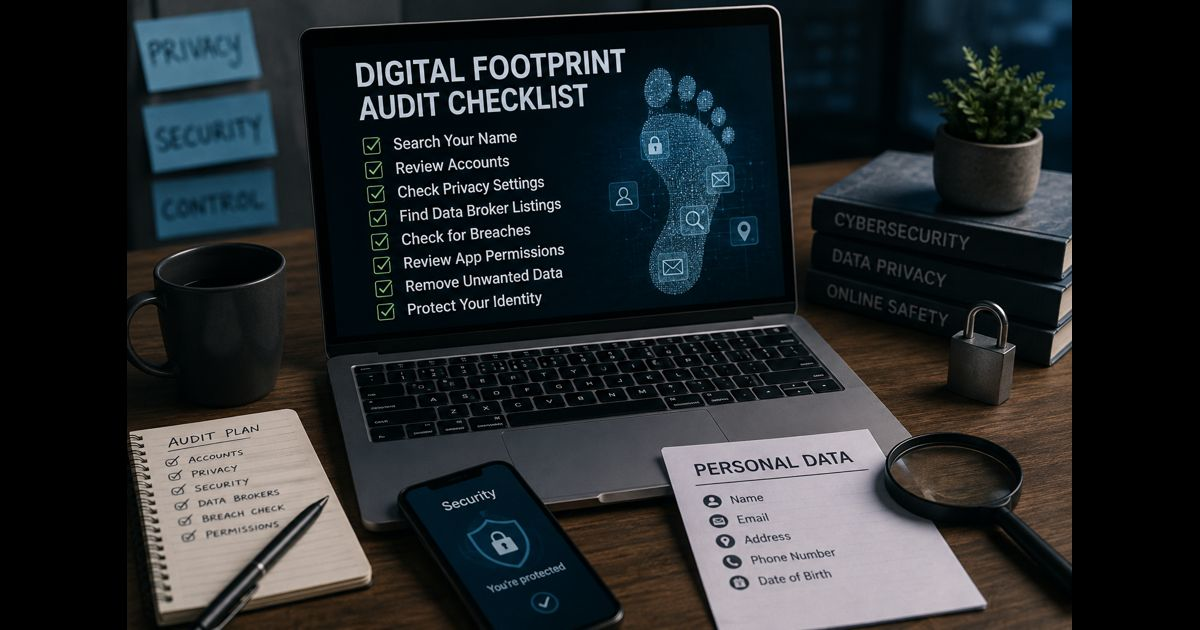
A digital footprint audit checklist helps you review the accounts, personal details, public posts, data listings, and security settings connected to your life online. The purpose is not to erase your identity from the internet. It is to understand what is visible, identify information that creates unnecessary exposure, and take sensible action.
Your digital footprint is broader than social media. It includes email accounts, old forum profiles, shopping services, cloud storage, app permissions, data-broker listings, public comments, recovery details, and information that may have appeared in a breach. Some information was shared intentionally; some may have been collected, copied, or published by others.
A careful audit separates routine public information from details that could affect privacy, security, finances, reputation, or personal safety.
Start With a Private Audit Record
Use a spreadsheet, encrypted note, or password-protected document. Do not copy passwords, identity numbers, bank details, or sensitive documents into the record.
For each finding, note:
- Where it appears
- What information is visible
- Whether the information is accurate
- Who can access it
- The potential consequence
- The action required
- The date to check again
This creates a clear record instead of turning the audit into a series of disconnected searches.
1. Search Your Name and Public Identifiers
Open a private browsing window and search for your full name in quotation marks. Repeat the process using common name variations, initials, former names, usernames, and combinations with your city, school, employer, or profession.
Check standard web results as well as image, video, and news sections.
Look for:
- Outdated professional profiles
- Public contact details
- Old event listings or directory entries
- Photos and videos in which you are tagged
- Public posts associated with your name
- Incorrect information
- Impersonation accounts
- Pages that reveal more personal information than intended
Private browsing reduces the influence of your own search history, although results can still differ by location, device, and search engine.
2. List Every Important Online Account
Begin with accounts that store sensitive data or can be used to access other services.
Include:
- Primary and recovery email accounts
- Banking, payment, tax, insurance, health, and government services
- Mobile provider and utility accounts
- Cloud storage and photo libraries
- Social networks and messaging services
- Online shopping, delivery, travel, and loyalty accounts
- Streaming, gaming, and subscription services
- Professional networks, portfolios, forums, and marketplaces
- Old accounts you have not used for years
For each account, confirm the email address, phone number, recovery methods, public profile settings, and payment details. An account that is rarely used can still create risk when its password is old or its recovery information is no longer under your control.
3. Review Social Profiles, Posts, and Tags
Social platforms often reveal more than a profile bio. Review public posts, comments, old photographs, tagged content, visible friend or follower lists, shared locations, and group memberships.
Ask:
- Does this account reveal my home, workplace, routine, or travel plans?
- Are old posts available to a wider audience than intended?
- Can strangers find the account through my phone number or email address?
- Are tagged photos or comments exposing information I would not publish myself?
- Does the profile still accurately represent me?
- Is this account still worth keeping?
Do not assume every informal post is harmful. Focus on information that is overly personal, misleading, unsafe, or likely to be taken out of context.
4. Check Privacy Settings and Audience Controls
Review privacy settings directly on each important platform. Settings can change after an update, and older accounts may still use broad default visibility.
Confirm who can:
- See your profile and posts
- Tag or mention you
- View your followers, friends, or connections
- Search for you through your email address or phone number
- Contact you through direct messages or requests
- See your activity status or location
- Reuse, download, or share your content
Turn off precise location access for apps that do not genuinely need it. Be especially cautious with public posts made while travelling, because they can reveal where you are and when your home may be empty.
5. Find Forgotten and Duplicate Accounts
Old accounts are easy to overlook. Search previous inboxes for account-confirmation messages, password resets, receipts, subscriptions, and welcome emails. Review old devices, app-store histories, password managers, and bank statements for services you may have forgotten.
For every inactive account, choose one of four actions:
- Keep it and secure it
- Update the details it holds
- Download records you need, then close it
- Request deletion if the service offers it
Before closing an account, check whether it contains invoices, tax records, photos, purchases, or access to another account.
6. Review Data-Broker and People-Search Listings
Data brokers and people-search sites may publish names, addresses, phone numbers, ages, relatives, past locations, and property-related information. Entries can be incomplete or inaccurate, but they may still make targeted scams, unwanted contact, or identity confusion easier.
Search for your name and known addresses on relevant people-search sites. When a listing appears, record:
- The website name and page address
- The information displayed
- Whether it belongs to you
- The site’s opt-out or correction method
- The date you submitted a request
- The date you plan to verify the result
Each site has its own process. Removing a record from one provider does not automatically remove it from other databases, public records, web archives, or pages that copied the same information.
7. Check for Breach Exposure
A breach can expose email addresses, usernames, passwords, phone numbers, or other account data. The risk becomes more serious when a password has been reused.
Review whether your email addresses have appeared in known breach notifications. If an account may have been affected:
- Change the password immediately
- Do not reuse the replacement password anywhere else
- Enable multi-factor authentication
- Review recent sign-in activity and active sessions
- Confirm recovery email addresses and phone numbers
- Remove unfamiliar email forwarding rules
- Store backup codes somewhere secure
Start with your primary email account. Email often controls password resets for banking, shopping, social media, and other services.
8. Audit Connected Apps and Permissions
Third-party apps may retain access to your data long after you stop using them. Review connected apps within your email, cloud storage, calendar, social-media, and device accounts.
Remove access from any app that is unfamiliar, unused, or requests data unrelated to its function.
Pay close attention to permissions involving:
- Email reading or sending
- Cloud files and shared folders
- Contacts and calendars
- Social-media posting
- Microphone and camera
- Photo libraries
- Precise location
- Bluetooth and nearby devices
A permission should have a clear purpose. A map app may require location access; a simple calculator or wallpaper app generally should not need access to contacts, messages, or a microphone.
9. Look for Impersonation and Misleading Information
Search for profiles, websites, marketplace listings, or messages that use your name, photos, business details, or personal information without permission.
If you find impersonation:
- Capture screenshots showing the account name, page address, date, and relevant content
- Save suspicious messages and transaction records
- Report the account through the platform’s official impersonation process
- Warn close contacts if there is a credible risk that they may be approached
- Contact your financial institution or relevant authority if fraud has occurred
For an inaccurate directory listing or article, request a correction from the publisher. A truthful public record or legitimate reporting may not be removable, but inaccurate details should still be challenged.
10. Rank Findings by Risk
Not every result deserves the same response. Prioritize according to sensitivity, visibility, and the likelihood of harm.
|
Priority |
Examples |
Action |
|
Urgent |
Exposed passwords, financial details, identity documents, active impersonation |
Secure accounts, change credentials, report the issue |
|
High |
Home address, personal phone number, location patterns, recovery details |
Request removal, correct information, tighten privacy controls |
|
Moderate |
Dormant accounts, outdated profiles, public old posts |
Update, archive, limit visibility, or close |
|
Low |
Accurate, non-sensitive public information |
Keep, monitor, or leave unchanged |
This approach keeps the audit practical. Trying to remove every online reference to yourself can waste time and may not be necessary.
11. Create an Action Plan
Turn the audit into a manageable plan. Start with the issues that affect account access, money, identity, safety, or personal contact details.
A strong action plan may include:
- Replacing reused passwords
- Enabling multi-factor authentication
- Updating account recovery options
- Removing unneeded connected apps
- Closing dormant accounts
- Changing public profile settings
- Requesting correction or removal of inaccurate listings
- Submitting data-broker opt-out requests
- Monitoring unresolved results
Set follow-up dates. Some removals take time, and information can reappear when a data broker updates its records.
How Often Should You Audit Your Digital Footprint?
Complete a full review at least once a year. Run a smaller check after a breach, move, job change, new phone number, lost device, public appearance, or suspicious account activity.
Your digital footprint will never be completely static. The aim is not perfection. It is to keep sensitive information from being unnecessarily exposed, maintain secure account access, and make sure the public information connected to you is accurate.
Frequently Asked Questions
What is a digital footprint audit?
A digital footprint audit is a structured review of the accounts, public content, personal data, security settings, and third-party listings connected to a person online. It identifies information that can be secured, corrected, reduced, or monitored.
Can I remove everything about myself from the internet?
Usually, no. Public records, legitimate reporting, archives, and content posted by other people may remain available. You can still reduce unnecessary exposure by removing data you control, requesting corrections, opting out of data-broker listings, and securing accounts.
How long does a digital footprint audit take?
A first audit may take several hours, especially when you have many old accounts or data-broker listings. Later reviews are faster when you keep an action record.
Should I delete old accounts?
Delete an old account when you no longer need it, after saving important records and confirming it is not used for recovery elsewhere. If deletion is not available, remove sensitive details, restrict visibility, and secure the account with a unique password.
What is the most important part of a digital footprint audit?
Protecting your primary email account, using unique passwords, enabling multi-factor authentication, reviewing recovery options, and reducing exposure of sensitive personal details should come first.